

Table of Contents
Most blog posts never rank on Google. Not because the content is bad, but because the posts are poorly structured, weakly optimized, and fail to match search intent. In this guide, you’ll learn the exact process we use to plan, write, and optimize blog posts that attract impressions, clicks, and long-term organic traffic in 2026.
But even the best content fails if your website is slow or vulnerable to attacks. That is why we are taking it a step further: You need a digital shield.
In this guide, we will walk through the exact process of setting up Cloudflare to turbocharge your website speed, tighten your security, and block malicious bot traffic, all for free.
Phase 1: Understanding Why Your Website Needs Cloudflare
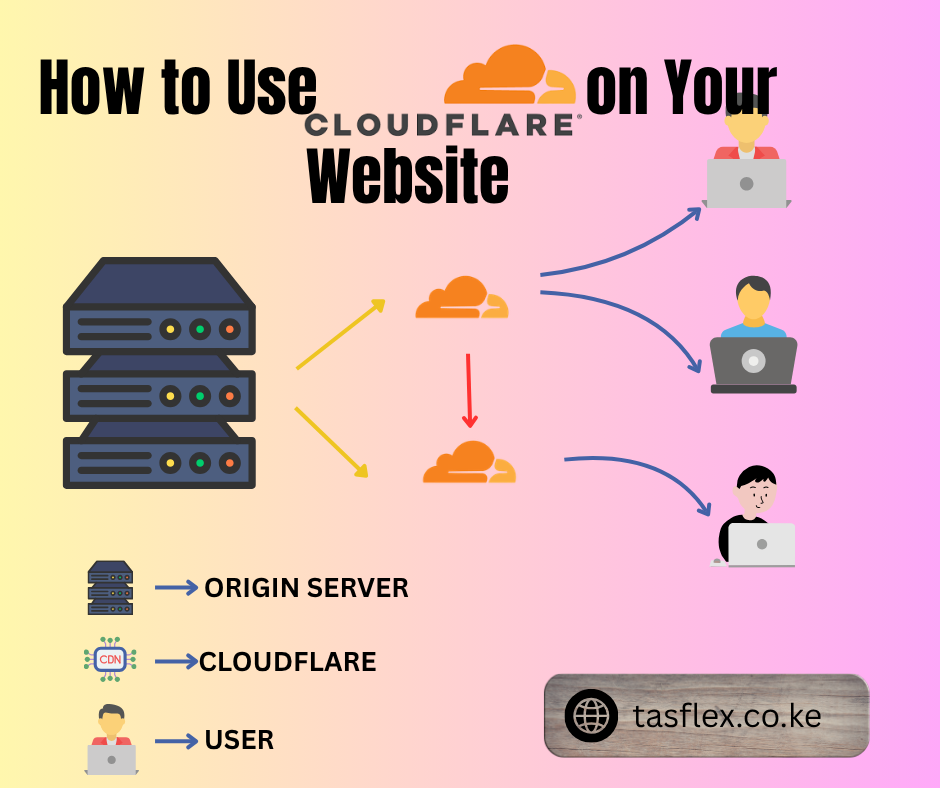
Before you touch your DNS settings, it is important to understand what Cloudflare actually does for your business. Think of Cloudflare as a gatekeeper that sits between your website and the rest of the internet.
1. Speed (The CDN Advantage)
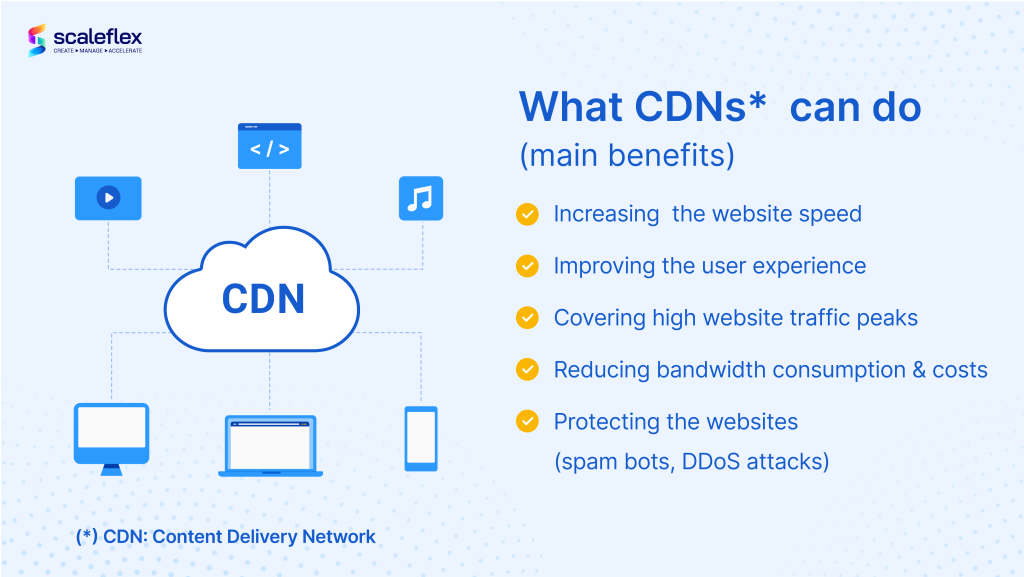
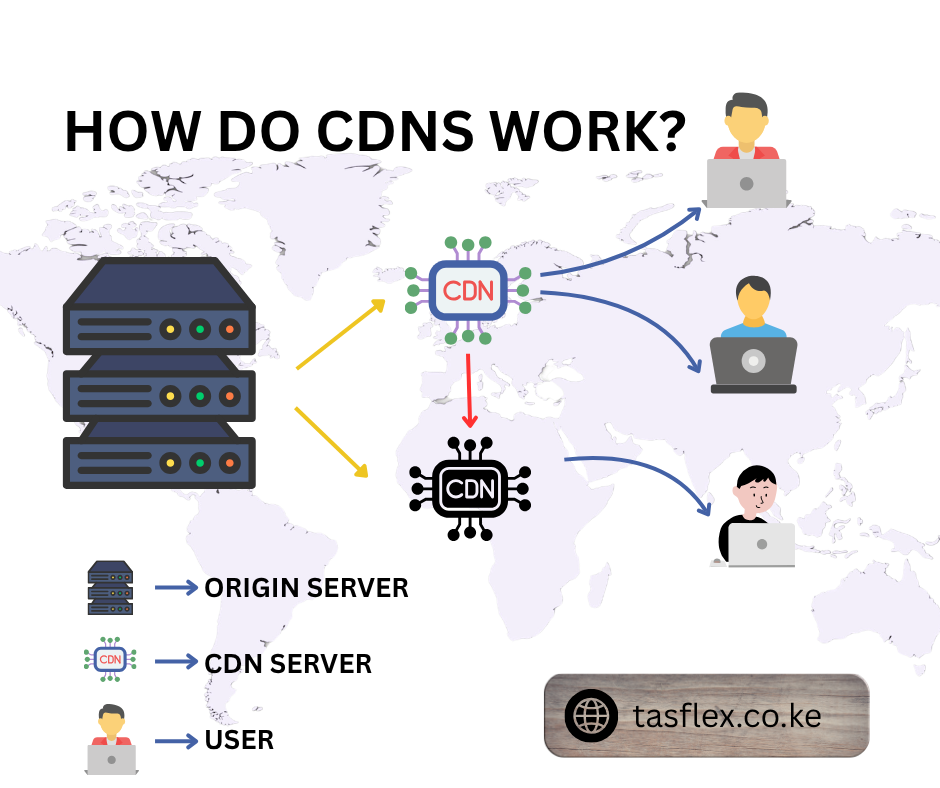
As we discussed in our previous guide on speeding up your website using a CDN, your website files are physically stored on a server. If that server is in the US and your customer is in Nairobi, the data has to travel thousands of miles. Cloudflare caches your content in hundreds of global data centers, including servers right here in Kenya, serving it to your visitors instantly.
2. Security (The Shield)
Cloudflare acts as a Web Application Firewall (WAF). It inspects incoming traffic to your site and blocks bad actors like hackers and malicious bots, before they ever reach your hosting account. It effectively absorbs DDoS attacks, ensuring your site stays online even when it’s targeted by automated scrapers.
Phase 2: The Step-by-Step Setup
Step 1: Create Your Account & Add Your Site
Go to Cloudflare.com and sign up for a free account.
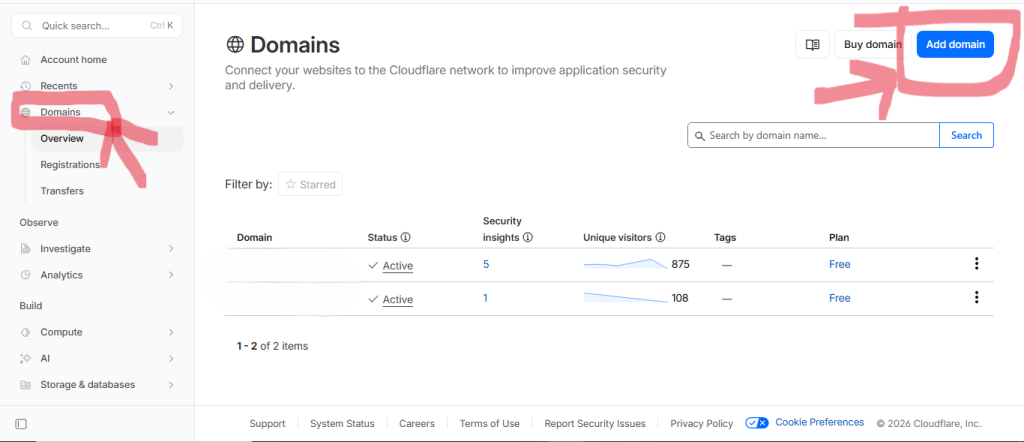
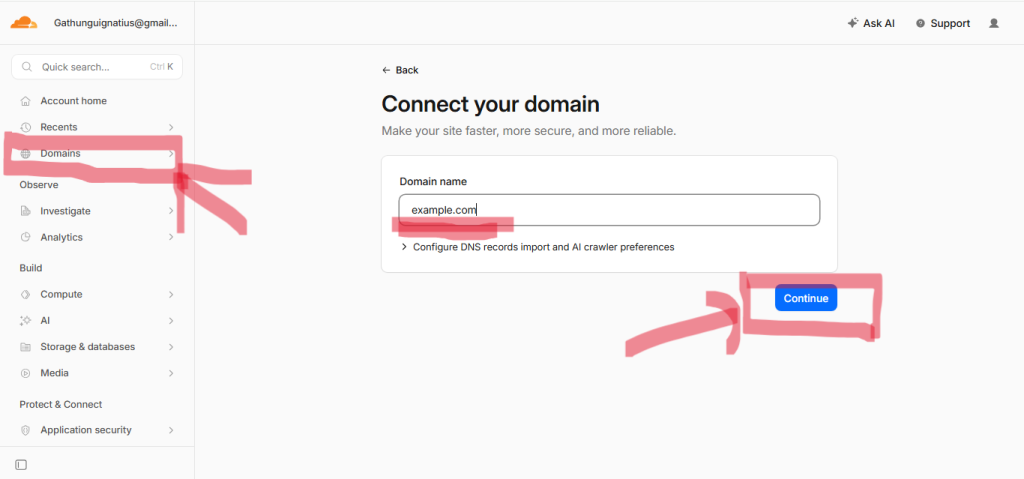
Click “Add a Site” in the top right.
Enter your domain (e.g., yourbusiness.co.ke). Do not add www or http://.
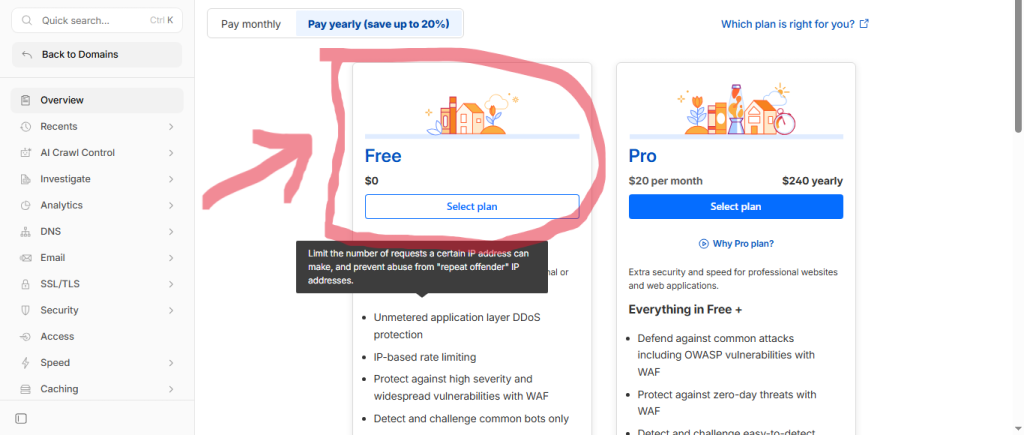
Choose the Free Plan: Scroll down to the bottom; Cloudflare often highlights paid plans, but the Free Plan is more than sufficient for 99% of Kenyan small businesses.
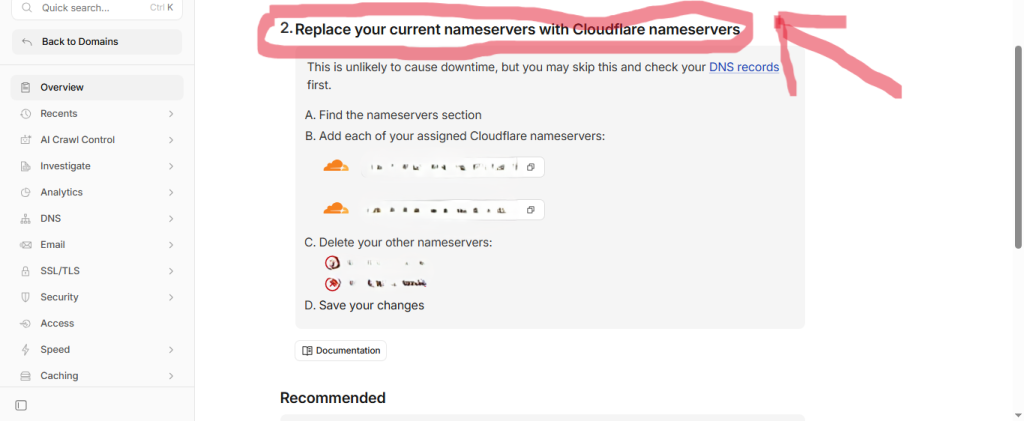
Step 2: Changing Your Nameservers
Cloudflare will provide you with two new nameservers (e.g., max.ns.cloudflare.com).
Log in to your domain registrar dashboard (where you bought your domain, like Novahost or Truehost).
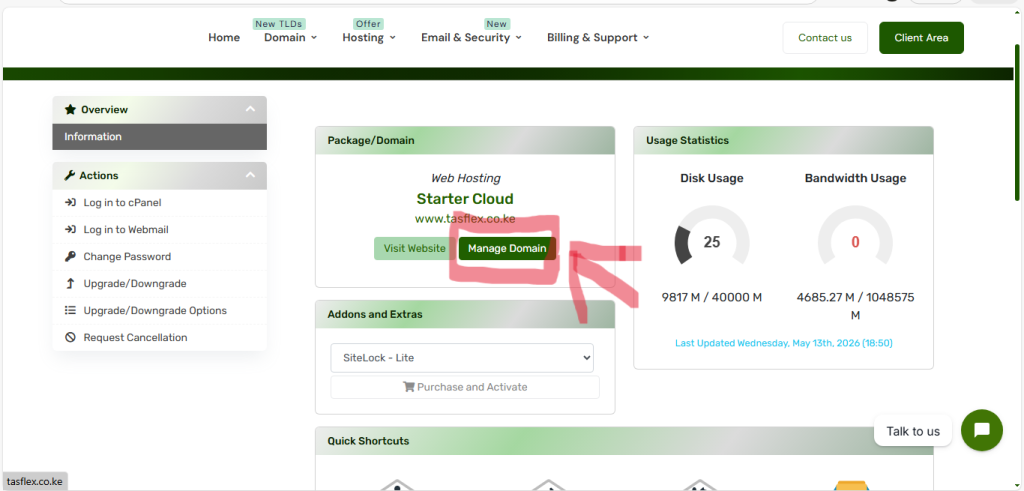
Find the “Nameservers” or “DNS Management” section.
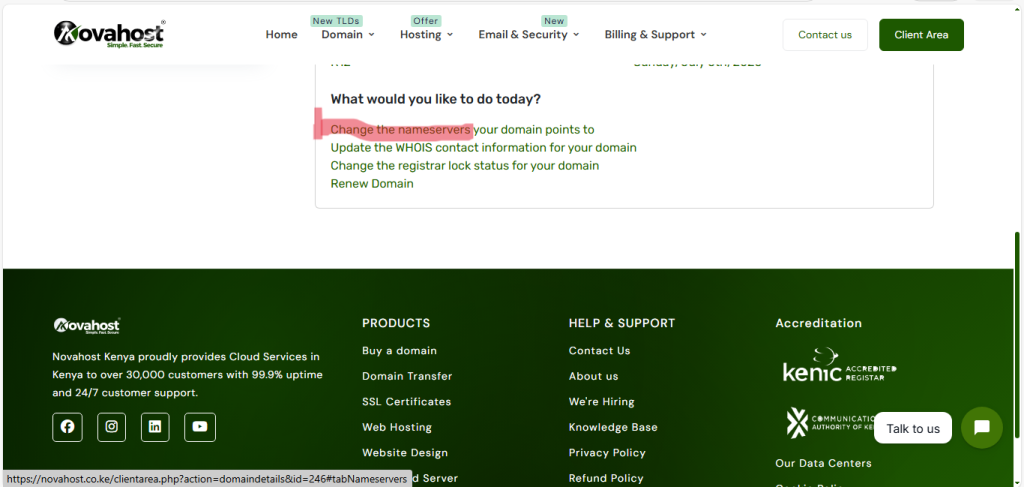
Replace your current host’s nameservers with the ones Cloudflare gave you.
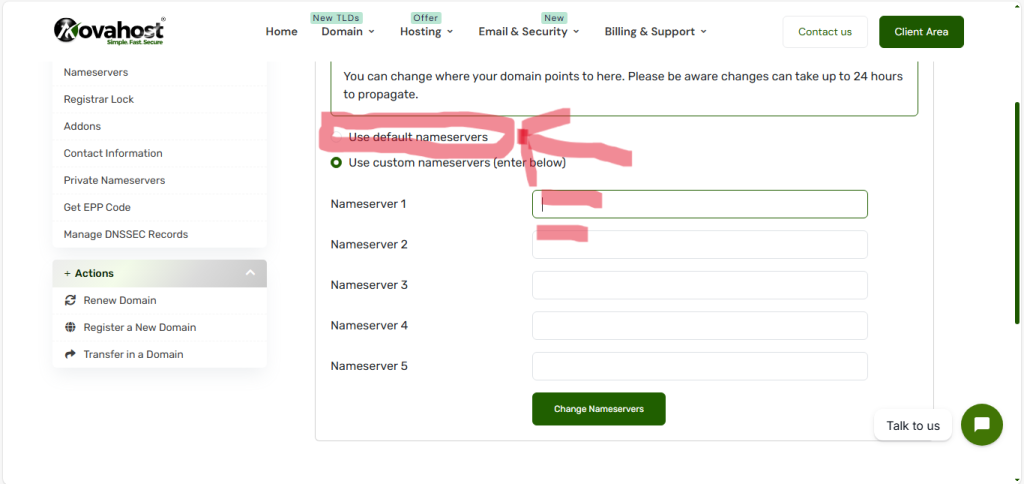
- Wait: This process, called propagation, can take anywhere from 15 minutes to 24 hours.
Step 3: The Critical Part, DNS Verification
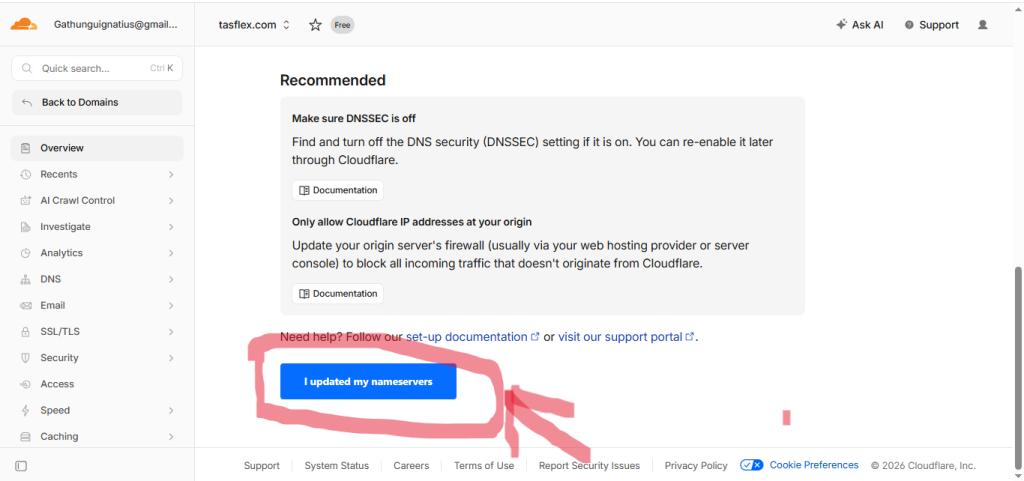
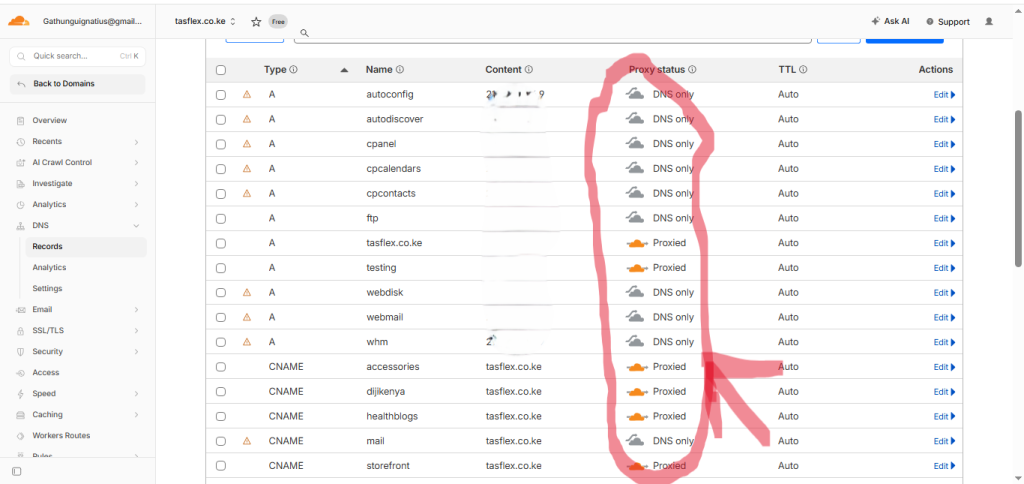
Cloudflare will automatically scan your current DNS records (A Records, CNAME, MX Records).
- Verify MX Records: Look for your MX records. These handle your professional email. If they are missing from the scan, you will stop receiving emails. Add them manually if necessary.
- Proxy Status: You will see a cloud icon next to your records.
- Orange Cloud (Proxied): Cloudflare is protecting this subdomain. Use this for your root domain (
@) andwww. - Grey Cloud (DNS Only): Cloudflare is bypassing this. Use this for
mail,ftp, orcpanelsubdomains to avoid connection errors.
- Orange Cloud (Proxied): Cloudflare is protecting this subdomain. Use this for your root domain (
Phase 3: Optimizing Websitefor 2026
Once your site is active on Cloudflare, you need to configure it for perfection.
1. SSL/TLS Settings
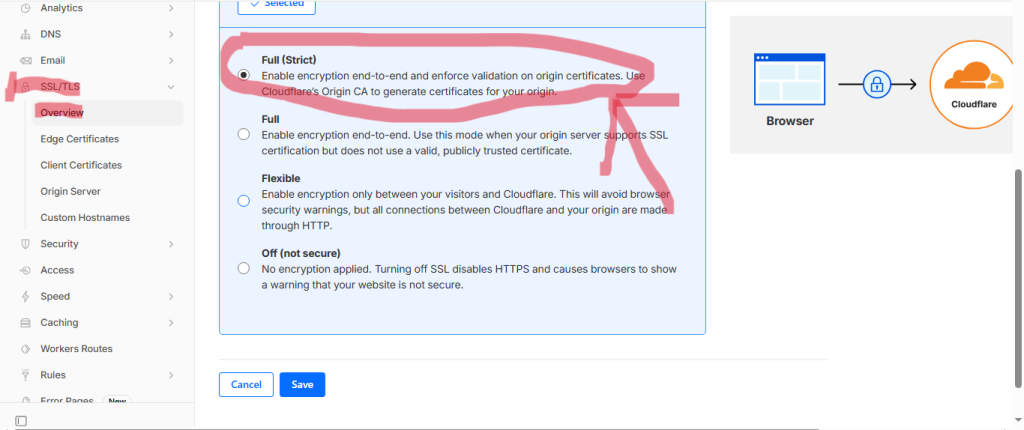
Go to your Cloudflare Dashboard > SSL/TLS. Set this to “Full (Strict)”.
- Note: Avoid the “Flexible” mode, as it often causes “Too Many Redirects” loops in WordPress.
2. Performance (Speed)
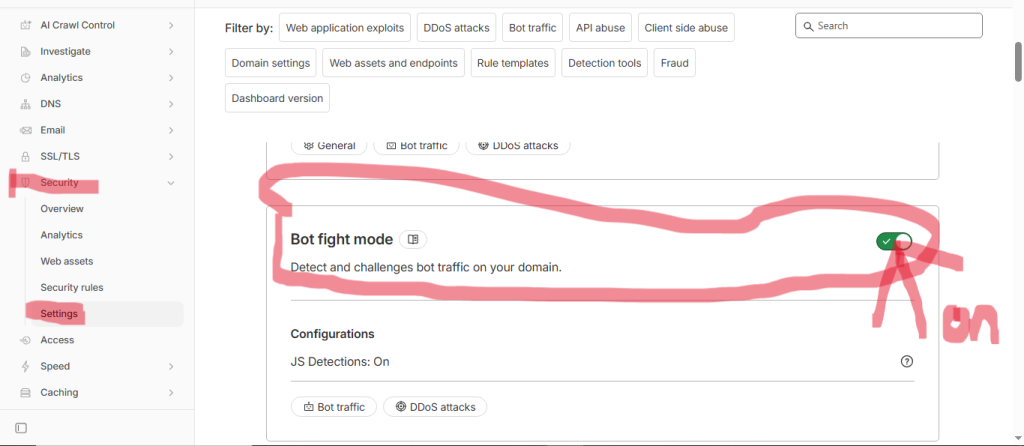
Under the Speed > Optimization tab:
- Auto Minify: Enable JavaScript, CSS, and HTML. This shrinks your code and makes pages load faster.
- Brotli: Toggle this ON. It is a more efficient compression algorithm than the older Gzip.
- Bot Fight Mode: Toggle this ON under the Security tab. It blocks simple, malicious scrapers from consuming your bandwidth.
3. The WordPress Plugin (The Pro Move)
For extreme speed, install the Cloudflare WordPress plugin. Connect it via your API key (found in your Cloudflare Profile > API Tokens). This allows you to purge your cache directly from your WordPress dashboard whenever you update a blog post.
Frequently Asked Questions (FAQs)
1. Will Cloudflare break my contact forms?
Sometimes, features like Rocket Loader can interfere with complex JavaScript themes. If your forms stop working, toggle Rocket Loader OFF and test again.
2. Does Cloudflare replace my hosting provider?
No. You still need reliable web hosting to store your website files. Cloudflare is just the fast, secure lane leading to your house.
3. Is the Free Plan really enough for my business?
Yes. It provides unlimited bandwidth, DDoS protection, and a global CDN. It is more than enough for small business websites and blogs in Kenya.
4. What if my email stops working after the change?
This is almost always a DNS issue. Check that your MX records in Cloudflare match exactly what your email provider (like your hosting company) requires.
5. How often should I update these settings?
Once you have configured them correctly, you rarely need to touch them. Focus your energy on creating high-ranking content for your business.
Build a Faster, Safer Digital Presence.
Cloudflare is the foundation of a modern, secure website. At Tasflex Designs, we build websites with optimized architecture to ensure you get the most out of your tools and scale your business without technical bottlenecks.
Explore our High-Performance Web Services and let’s secure your site today.
Next time: We’ll show you how to change domain nameservers and learn how they work to match your new secure domain. Subscribe to our newsletter below so you don’t miss our next technical deep dive!