

Table of Contents
Changing your nameservers is often described as the scariest part of managing a website. It feels like performing surgery on your digital home. If you get it right, your site becomes faster and more secure; if you get it wrong, your website and emails could disappear from the internet for hours.
But don’t worry. In this guide, we’re going to demystify what nameservers are and show you the exact, safe process to change them, the same process we used in our previous guide on how to set up Cloudflare for your website.
What is a Nameserver? (The Simple Explanation)
To understand nameservers, you need to understand how the internet finds your business.
Computers don’t communicate using names like tasflex.co.ke; they use strings of numbers called IP Addresses (e.g., 192.154.0.1). A Nameserver is essentially a phonebook for your domain.
When someone types your URL into their browser, the browser asks the Nameserver: Where is this website living? The Nameserver looks at its records and points the browser to the correct hosting server.
Why would you change them?

You usually change nameservers when:
- Switching Hosting: You’ve moved your house to a new company and need to update the address.
- Adding Security: You are connecting to a service like Cloudflare to protect your site.
- Branding: You want to use “Private Nameservers” (e.g.,
ns1.yourbrand.com).
Phase 1: Preparation (How to Not Break Your Site)
The number one reason websites break during this process is that people forget about their Email. Your nameservers don’t just point to your website; they often manage your email records (MX records) too.
1. Identify Your Current Records
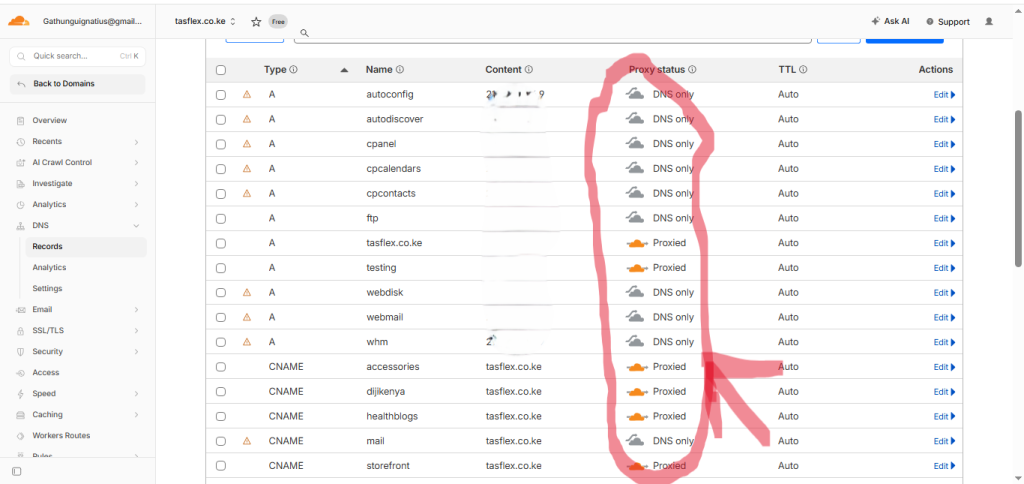
Before changing anything, log in to your current DNS manager and take a screenshot of your records. Pay special attention to:
- A Records: Points to your website files.
- MX Records: Points to your email provider (e.g., Google Workspace or Outlook).
- CNAME Records: Often used for subdomains.
2. Match the Records at the New Destination
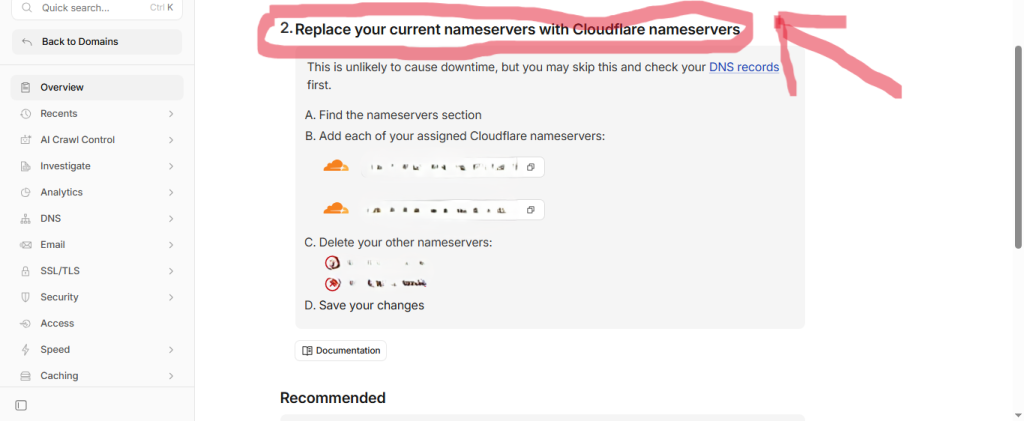
If you are moving to Cloudflare or a new host, ensure these records are already typed into the new system before you flip the switch. If the new “Phonebook” doesn’t have your email records listed, your inbox will stop working the moment you update.
Phase 2: The Step-by-Step Change
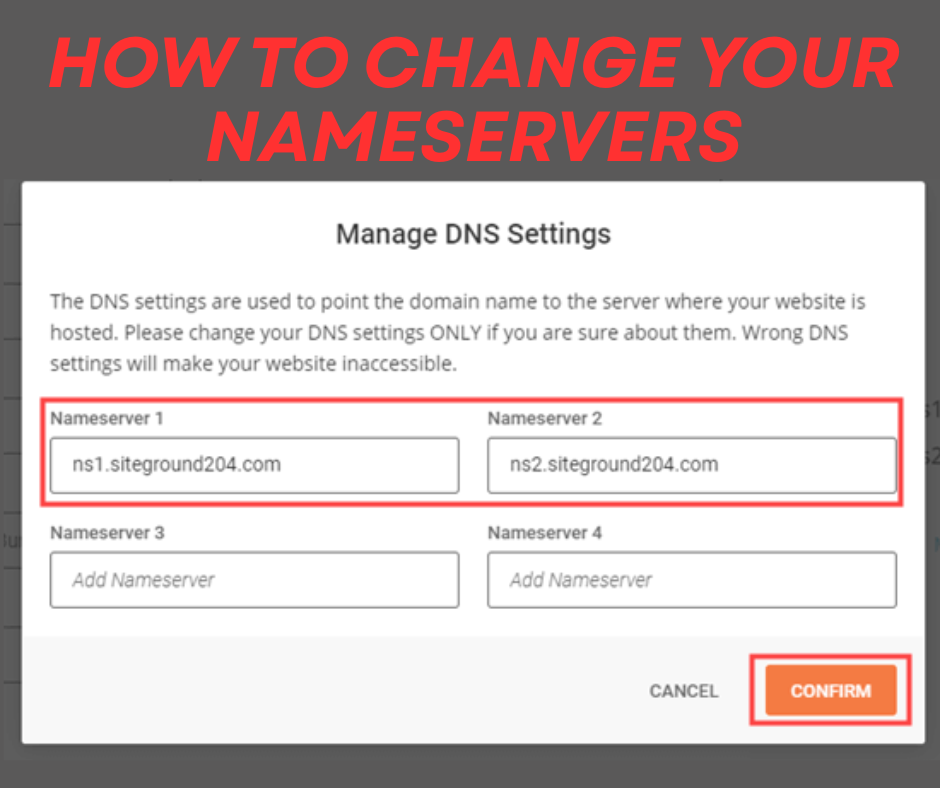
Once you have your new nameservers (usually provided in pairs like ns1.newhost.com and ns2.newhost.com), follow these steps:
Step 1: Log in to your Domain Registrar
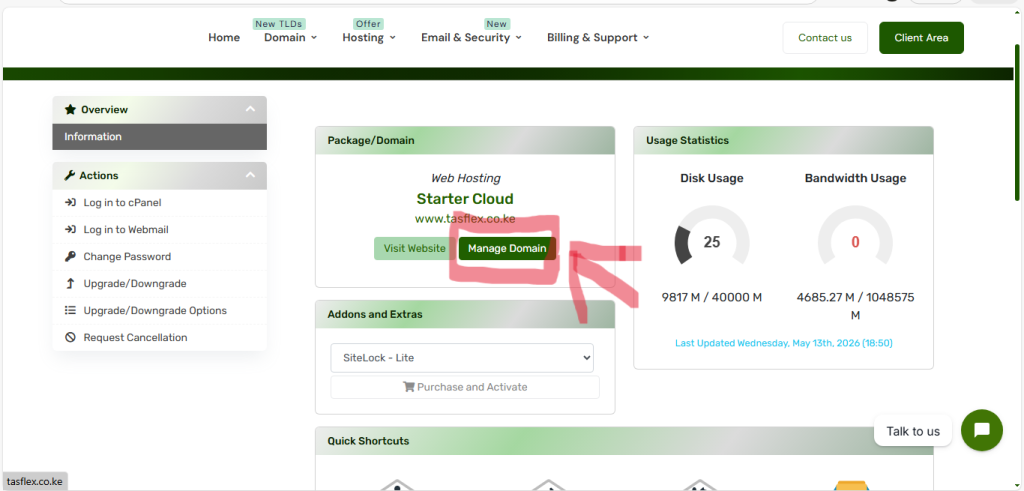
This is where you bought the domain (e.g., Novahost or Truehost). It is often different from your hosting provider.
Step 2: Locate Nameserver Management
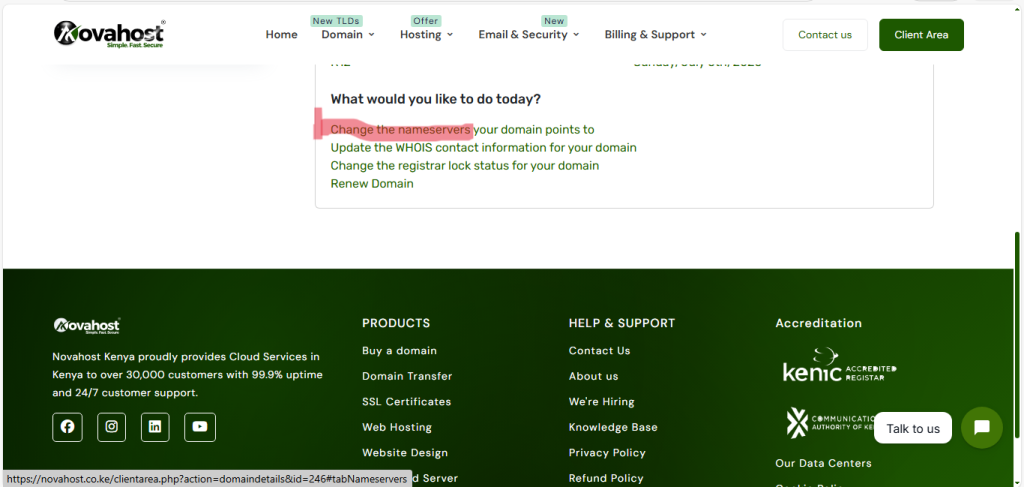
In your dashboard, look for “Domain Management,” “DNS Settings,” or “Manage Nameservers.”
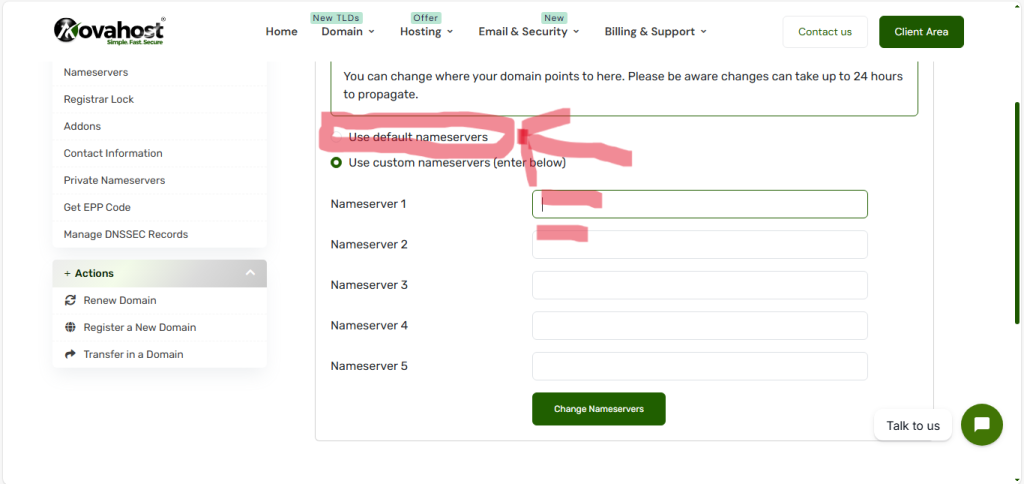
Step 3: Switch to Custom Nameservers
Most registrars default to their own nameservers. Select the option for “Custom Nameservers” or “Use my own.”
Step 4: Enter the New Pair
Delete the old nameservers and paste the new ones. Double-check for typos. A single misplaced letter will take your site offline.
Step 5: Save and Wait (Propagation)
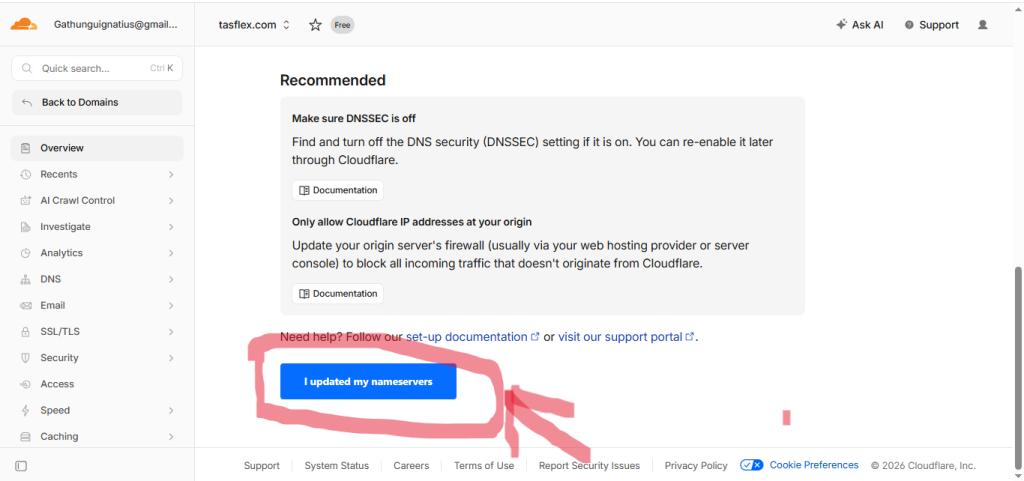
When you save, you are telling every computer on earth that your address has changed. This doesn’t happen instantly. This period is called Propagation. It can take anywhere from 15 minutes to 48 hours, though in 2026, it usually happens within the hour.
Phase 3: Post-Change Checklist
- Clear Your Cache: Your browser might still be looking at the “old” version of your site. Clear your browser cache or check the site using a private/incognito window.
- Check Your Email: Send a test email from an outside account (like a personal Gmail) to your business email. If it bounces, your MX records are missing at the new nameserver.
- Use a DNS Checker: Use a tool like DNSChecker.org to see if the new nameservers are showing up in different parts of the world.
Frequently Asked Questions (FAQs)
1. Will my website go down during the change? If you followed Phase 1 and matched your records at the new destination beforehand, there should be zero downtime. The internet will seamlessly switch from the old “Phonebook” to the new one.
2. I changed my nameservers but I still see the old site. Why? This is likely a caching issue. Your internet service provider (ISP) or your browser is still remembering the old data. Wait a few hours or try a different device.
3. What happens if I delete my nameservers and leave them blank? Your website and email will stop working immediately. Your domain will be parked, and anyone visiting will see an error page.
4. Can I have more than two nameservers? Yes, some providers give you four. This adds redundancy, if one nameserver fails, the others are there as backups.
5. Why is my domain registrar different from my hosting? It doesn’t have to be, but many professionals prefer to keep them separate for security. It’s like having your car keys (Domain) in a different pocket than your car (Hosting).
Control Your Digital Assets. Changing nameservers is a foundational skill for any entrepreneur. At Tasflex Designs, we ensure your technical architecture is set up correctly from day one so you can focus on building authority and growing your sales.
Explore our High-Performance Web Services and let’s get your technical setup right.