
Table of Contents
So, you’ve picked your perfect domain name and settled on a free WordPress theme. Now comes the part that scares most beginners: Buying the hosting and connecting the dots.
In this guide, I will walk you through the exact process for our three recommended Kenyan hosts. By the end of this post, you will have a working website ready for content.
Phase 1: Choosing Your Provider
Before we start, pick the provider that fits your business needs. Use the links below to access the official checkout portals:
- Novahost: Best for high-performance business sites needing ultra-fast NVMe storage.
- Truehost: The most budget-friendly option for startups.
- Host Africa: Best for those who want premium 24/7 support.
Phase 2: The Purchase Process
Step 1: Select Your Plan

Navigate to the hosting section. For most small businesses, a Shared Cloud or WordPress Hosting plan is the right choice.
- Novahost Tip: Their “Standard Cloud” at KSh 5,500/year includes a Free .co.ke domain.
- Truehost Tip: Their “Silver” or “Gold” plans offer the best balance of price and resources.
Step 2: Register or Link Your Domain
You will be asked three options:
- Register a new domain: Use this if you don’t own one yet.
- Transfer your domain: Use this if you want to move your domain from another company to your new host.
- I will use my existing domain and update my nameservers: Select this if you bought your domain somewhere else (like Namecheap) and just want hosting here.
Step 3: Checkout with M-Pesa
One of the best features of these local hosts is the integration with Lipa Na M-Pesa.
- Review your order.
- Select M-Pesa as your payment method.
- Follow the prompts to enter your phone number. You will receive an STK Push on your phone to enter your PIN.
- Once paid, your account is activated instantly!
Phase 3: Connecting Your Domain (Nameservers)
If you bought your domain and hosting from the same company, you can skip this step,they handle it for you automatically.
However, if you bought them from different places, you must tell your domain where your “hosting house” is located. You do this using Nameservers.
How to update Nameservers:
- Log in to the dashboard where you bought the domain (e.g., Namecheap or GoDaddy).
- Find Domain Management or DNS Settings.
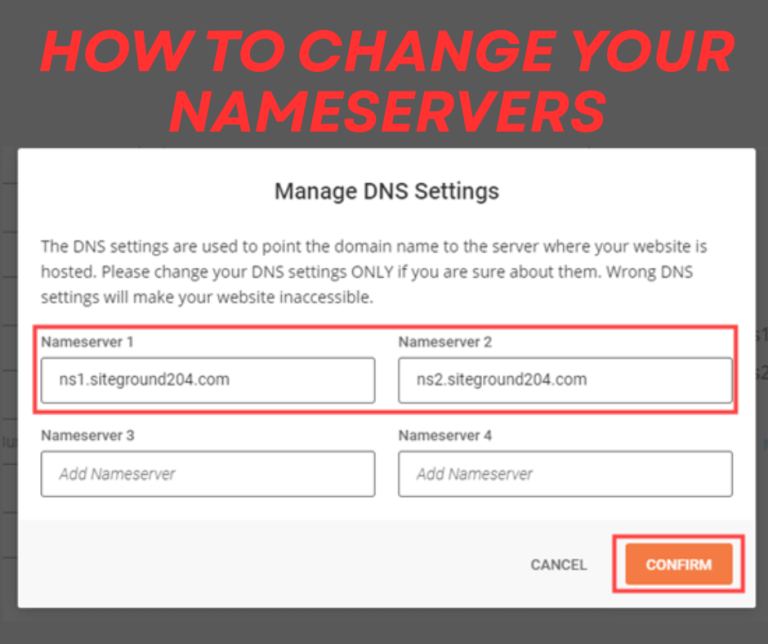
- Look for a section called Nameservers and select “Custom DNS.”
- Enter the nameservers provided by your hosting company in your “Welcome Email.” They usually look like this:
ns1.novahost.co.ke/ns2.novahost.co.kens1.truehost.cloud/ns2.truehost.cloud
- Click Save. Note that it can take anywhere from 1 to 24 hours for this change to spread across the internet (this is called “Propagation”).
Phase 4: Installing WordPress
Now that your domain is connected, it’s time to install the engine.
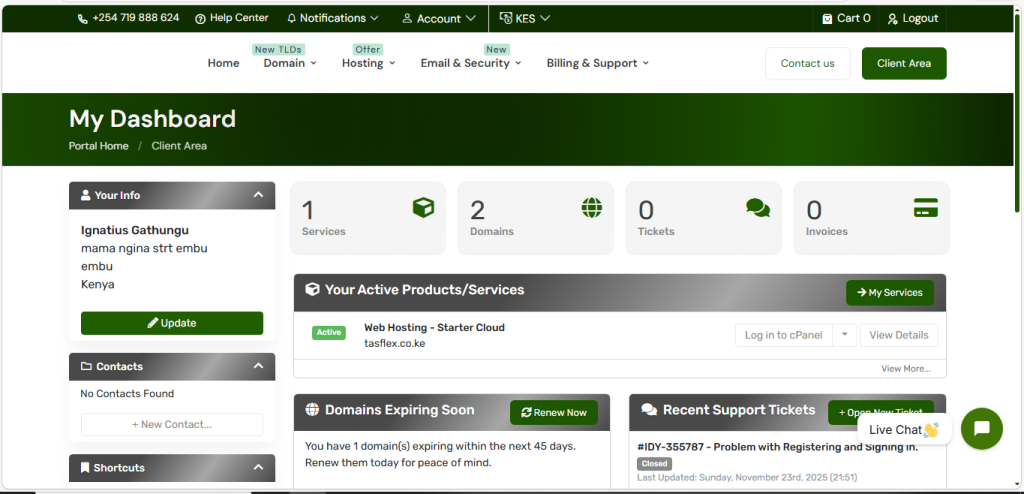
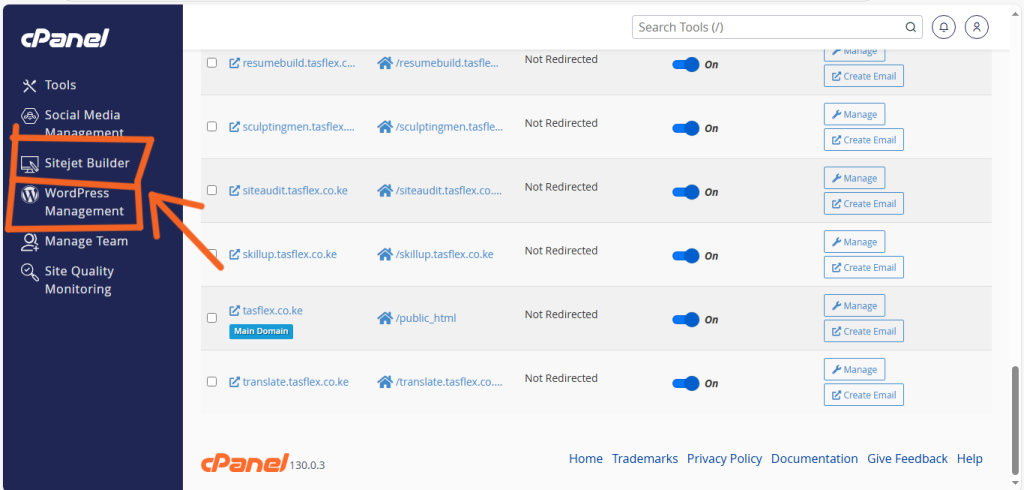
- Log in to your cPanel (The link and password are in your hosting welcome email).
- Scroll down to the “Software” section and click on “Softaculous Apps Installer.”
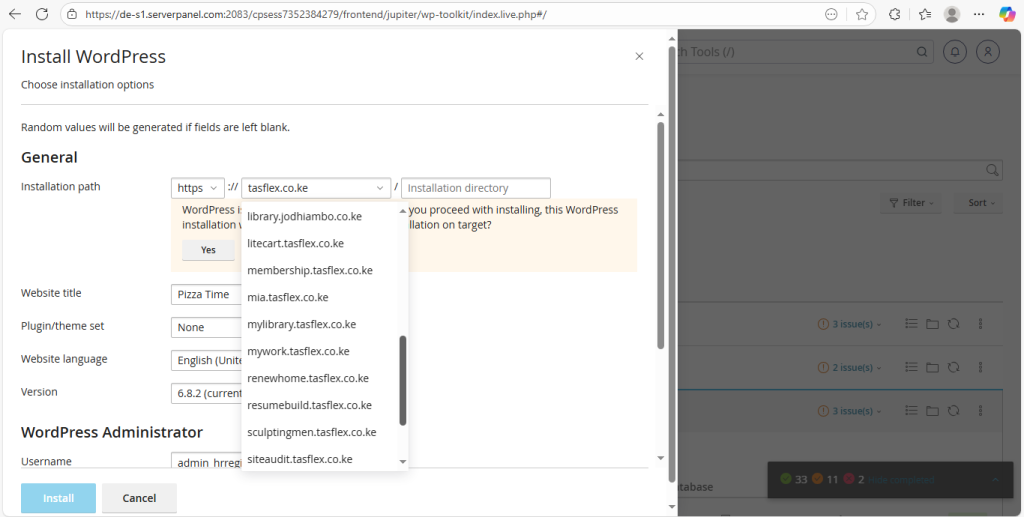
- Click the WordPress icon and then click “Install Now.”
- Important Settings:
- Choose Protocol: Select
https://to ensure your site is secure. - Admin Username/Password: Do not use “admin.” Create a strong, unique password.
- Choose Protocol: Select
- Scroll to the bottom and click Install.
Congratulations! Your site is live.
You can now log in to your website by going to yourdomain.co.ke/wp-admin.
Summary of Quick Links:
- Host with Novahost: Click Here
- Host with Truehost: Click Here
- Host with Host Africa: Click Here
Feeling stuck? Technical setups can be tricky. At Tasflex Designs, we offer a “Quick Launch” service where we handle the hosting, domain connection, and WordPress installation for you in 24 hours. Contact us today to get it done right.
Frequently Asked Questions: Hosting & Domains
I already bought my domain elsewhere. Can I still host with Novahost or Truehost?
Yes, you can. During the checkout process on Novahost
or Truehost
, simply select the option that says “I will use my existing domain and update my nameservers”. Once you finish the purchase, you just need to copy the “Nameservers” from your new host and paste them into your domain registrar’s settings.
How long does it take for my website to go live after payment?
If you pay via M-Pesa, your hosting account is usually activated instantly. However, if you are connecting a domain from a different provider, it can take anywhere from 1 to 24 hours for the connection to “propagate” across the global internet. During this time, your site might appear offline or show an error message.
What are “Nameservers” and where do I find them?
Think of Nameservers as the GPS coordinates for your website. They tell the internet where your files are stored. You will find them in the “Welcome Email” sent by your hosting provider immediately after your purchase. They usually look like ns1.novahost.co.ke or ns1.truehost.cloud.
Do I need to buy an SSL certificate separately?
No, you shouldn’t have to. Most top Kenyan providers like Novahost
, Truehost
, and Host Africa
include Free SSL Certificates (Let’s Encrypt) in all their hosting plans. This ensures your site shows the “Secure” padlock icon and protects your users’ data.
Can I upgrade my hosting plan later if my traffic increases?
Absolutely. One of the best things about using a professional host is scalability. As your business grows, you can move from a basic shared plan to a VPS or a Dedicated Server with just a few clicks in your billing area, without losing any of your data or files.
Need Professional Setup?
While the DIY route is great, we know that technical configurations can be stressful. If you want to ensure your domain, hosting, and professional emails are configured perfectly from day one, we can help.
Let Tasflex handle the heavy lifting. Contact us today to hear about our Launch Support packages where we get everything live for you while you focus on running your business.